

Player rating
BC Game Saint Martin App: Android and iPhone
Open on mobileMobile access keeps the full account
BC Game Saint Martin mobile uses the same profile as desktop. Wallet, My Bets, Transaction, Rollover, bonuses and Security all remain attached to the same login.
A ticket placed on a laptop can be checked on a phone, and Casino activity started on mobile remains in the same history later.
There is no need for a second mobile registration.
What the mobile version includes
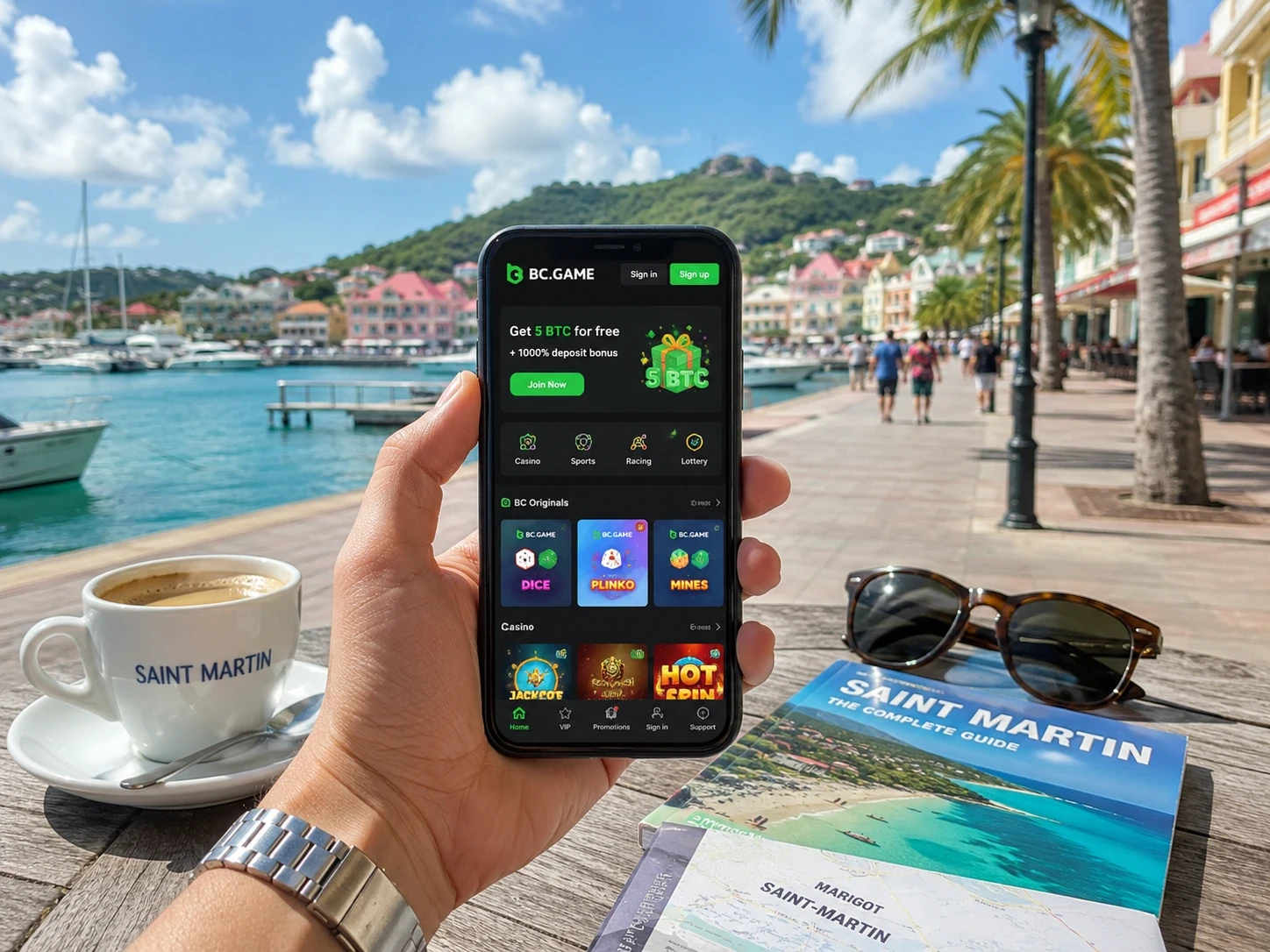
Casino keeps Slots, Live Casino, Table Games and BC Originals. Sportsbook keeps pre-match/live markets, the bet slip and My Bets.
Wallet keeps Deposit, Withdraw, Swap, Transaction and Rollover. Support and Help Center remain accessible.
The interface is resized for the device without removing the main product functions.
Android browser access
Chrome can open the responsive BC.GAME platform without installing a package.
Add to Home Screen can create a direct shortcut while leaving the experience in the browser.
The shortcut still opens the same account and Wallet.
Android installation when it is offered
If the current BC.GAME route shows Android download or Install App, use the package supplied through that route.
Open the downloaded file, approve the requested installation step, then sign in with the same credentials used on desktop.
Remove temporary unknown-app permission afterward if it is no longer needed.
iPhone and iPad shortcut
Open BC.GAME in Safari, tap Share, choose Add to Home Screen and confirm.
The icon opens the mobile web version and does not create a new balance.
If the route changes later, recreate the shortcut from the current verified page.
Logging in on mobile
Email and phone accounts use the registered identifier and password. Connected Google or Telegram profiles should be opened through the same provider.
Google Authenticator 2FA can add the rotating six-digit code after the normal login.
The same Security configuration applies on mobile and desktop.
Keeping the Android or iOS entry point current
Browser access remains the simplest fallback when an icon or package needs an update.
Open the current BC.GAME route first, then use the installation or Home Screen option shown at that time.
Updating the entry point does not reset Wallet, tickets or promotions.
Mobile crypto payments
Wallet > Deposit shows asset, network, receiving address and any Memo/Tag required for that route.
Wallet > Withdraw shows the available destination fields, network, minimum and fee before confirmation.
Transaction remains the place to see fund movements after the request is sent.
Sports and Casino controls on a small screen
Sportsbook filters can narrow the schedule before opening the market and bet slip.
Casino Search and Favourites shorten the path to repeat titles.
Both products keep their own histories even though they share the Wallet.
Mobile feature map
| Area | What stays available |
| Wallet | Same balances, Deposit, Withdraw, Swap and Transaction |
| Casino | Slots, Live Casino, Table Games and BC Originals |
| Sportsbook | Pre-match/live markets, bet slip and My Bets |
| Bonuses | Campaign balance and Rollover |
| Security | Email/phone, password and Google Authenticator 2FA |
Android installation steps
- Open the current verified BC.GAME route in Chrome.
- Use Android download or Install App if it is shown.
- Open the file from Chrome or Downloads.
- Approve installation for that package.
- Sign in with the existing BC Game profile.
- Remove temporary unknown-app permission if no longer needed.
Mobile login follows the original account route
Open BC.GAME on the phone and use the same authentication method that created the profile.
Email and phone accounts use the registered credentials, while Google or Telegram accounts should return through the same provider.
If 2FA is active, the Authenticator code follows the primary login as usual.
Why responsive web access remains useful
The browser version is not merely a backup. It provides the full mobile product set without requiring installation.
It also gives a reliable way to recreate an iOS shortcut or obtain the current Android package when the installation route changes.
That makes the current BC.GAME page the common starting point for every mobile access method.
Promotions stay synchronized across devices
A Casino Bonus claimed on desktop keeps the same Rollover on mobile. A FreeBet voucher visible on the phone belongs to the same Sports account used on a laptop.
Expiry and progress do not reset when the device changes.
Mobile therefore extends the same campaign rather than creating a second mobile version.
Mobile Support uses the same account records
Live Support, Help Center and the published support email remain available when the profile is opened on a phone.
A TxID, sports ticket or Casino round reference has the same meaning on mobile as it does on desktop.
That consistency lets a player contact Support from the device already being used without rebuilding the case elsewhere.
A new phone does not create new promotions
Signing in on a different device does not generate another First 4 sequence or another set of 60 Free Spins.
Campaign status belongs to the profile, including any claimed voucher, Rollover balance and expiry.
Mobile synchronization therefore protects the continuity of promotions as well as ordinary funds.
Updating mobile access does not reset the account
If an Android package or iOS shortcut needs to be refreshed, start from the current BC.GAME browser route.
Recreating the access point does not change Wallet, My Bets or promotions because those records belong to the profile.
Mobile updates therefore affect entry into the platform, not the underlying account state.
Mobile access can also be used just for Wallet
A phone session can open Deposit, Withdraw, Swap or Transaction without opening Casino or Sportsbook.
That makes the app or responsive site useful as a full account tool, not only a gaming screen.
App FAQ
Do I need another account for mobile?
No. The same authentication method opens the same Wallet, My Bets, bonuses and Security settings.
Can Android use BC Game without an APK?
Yes. Chrome can run the responsive site directly, and Add to Home Screen can create a browser shortcut.
How do I add BC Game to an iPhone?
Open the verified BC.GAME page in Safari, use Share > Add to Home Screen and confirm.
Does Rollover restart on a new device?
No. Promotional wagering belongs to the profile and remains synchronized between mobile and desktop.